Proton
Drop’s Proton configuration depends on:
- UMU launcher (more specifically the
umu-runbinary) - another application to download and manage Proton versions
Installing UMU launcher
Section titled “Installing UMU launcher”Install UMU launcher through their own guide on their GitHub repo. It covers packaging for a variety of distro. If you’re not covered, give it a Google search, or open an issue on GitHub or Discord and we’ll try to help you.
To check it’s installed, try running umu-run from your terminal.
Downloading other Proton versions
Section titled “Downloading other Proton versions”You can download other Proton versions from a variety of sources:
- Directly from the project, typically in a GitHub release
- Through Steam, which downloads official Proton versions
- 3rd-party application
For the 3rd-party application, we recommend ProtonUp-Qt, an open-source GUI application that supports quite a few different versions of Proton.
Detecting Proton versions
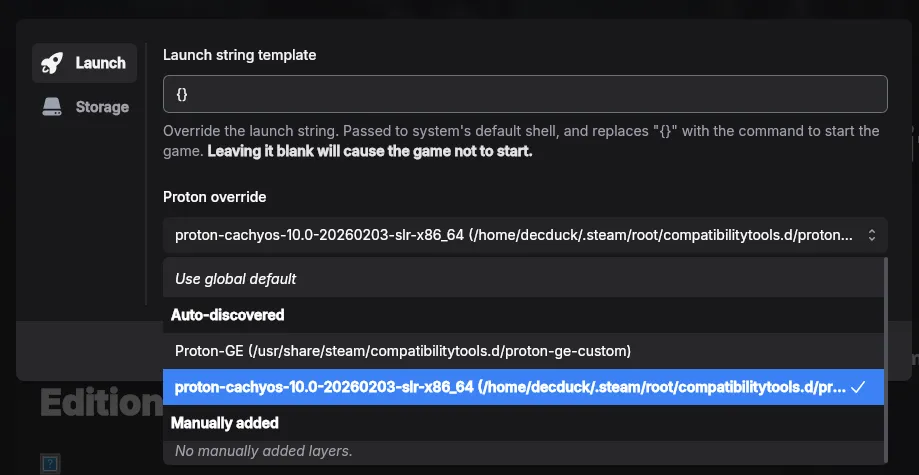
Section titled “Detecting Proton versions”Drop searches the following places for Proton versions:
/usr/share/steam/compatibilitytools.d/~/.steam/root/compatibilitytools.d/
Most applications support reading and writing to these directories for Proton versions, as they’re Steam directories.
Drop can also pick up other Proton versions, if you manually add them.
Using Proton versions
Section titled “Using Proton versions”Drop uses a global default Proton version to launch games by default. You can override this in a game’s options.